Save and Restore Settings
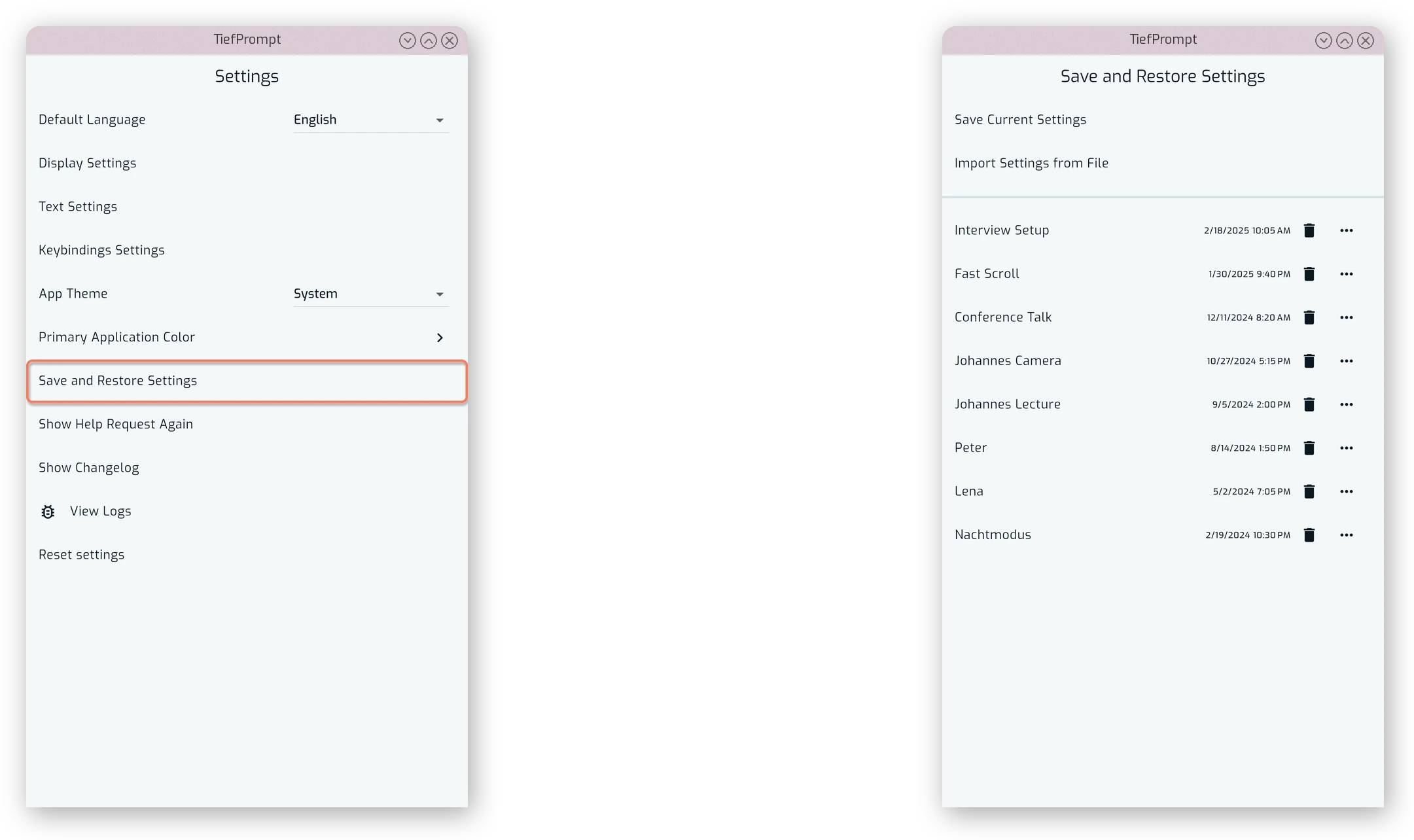
As customization is an integral part of TiefPrompt, and we’re aware of multiple-user workflows, there is the option to save and restore settings. That is positioned right below the primary color control, giving access to a list of named, saved settings as well as the option to import or export settings files.
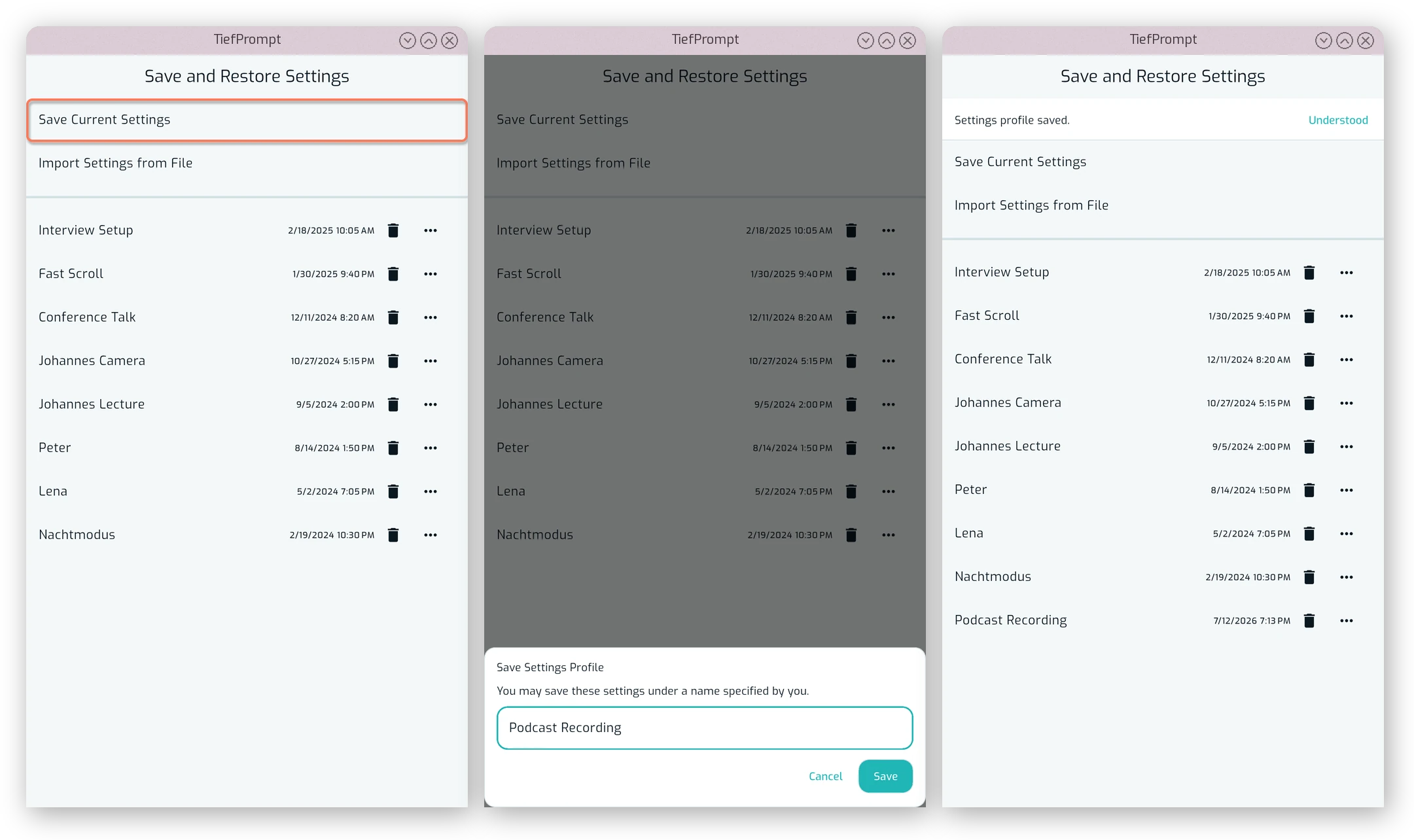
To save settings, press the button labeled “Save Current Settings” and enter a name. The new setting appears in the list below, and you can apply it by pressing on it.
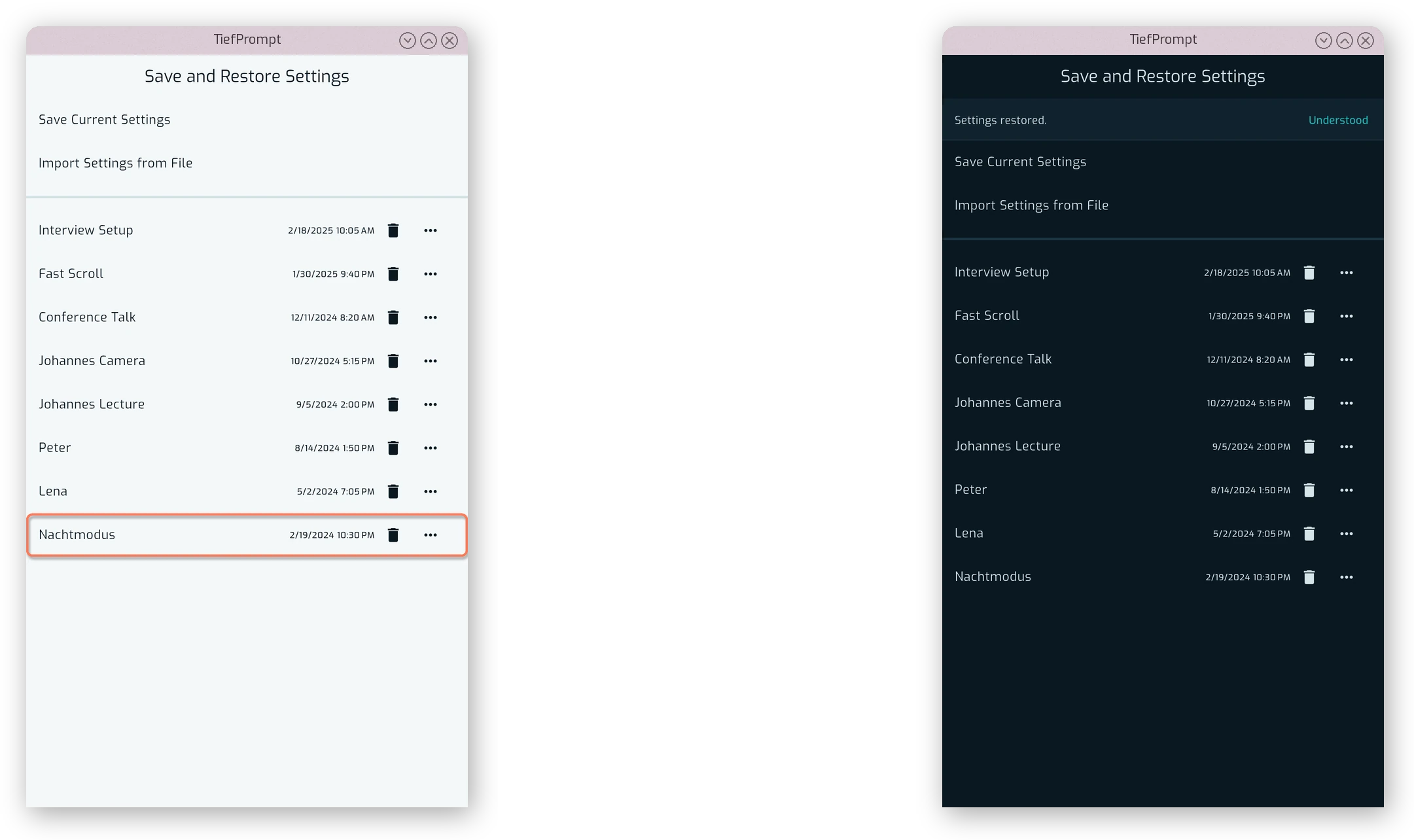
When applying settings, the whole app will be updated. Any currently unsaved changes will be lost, so make sure to save your current settings before applying a new one.
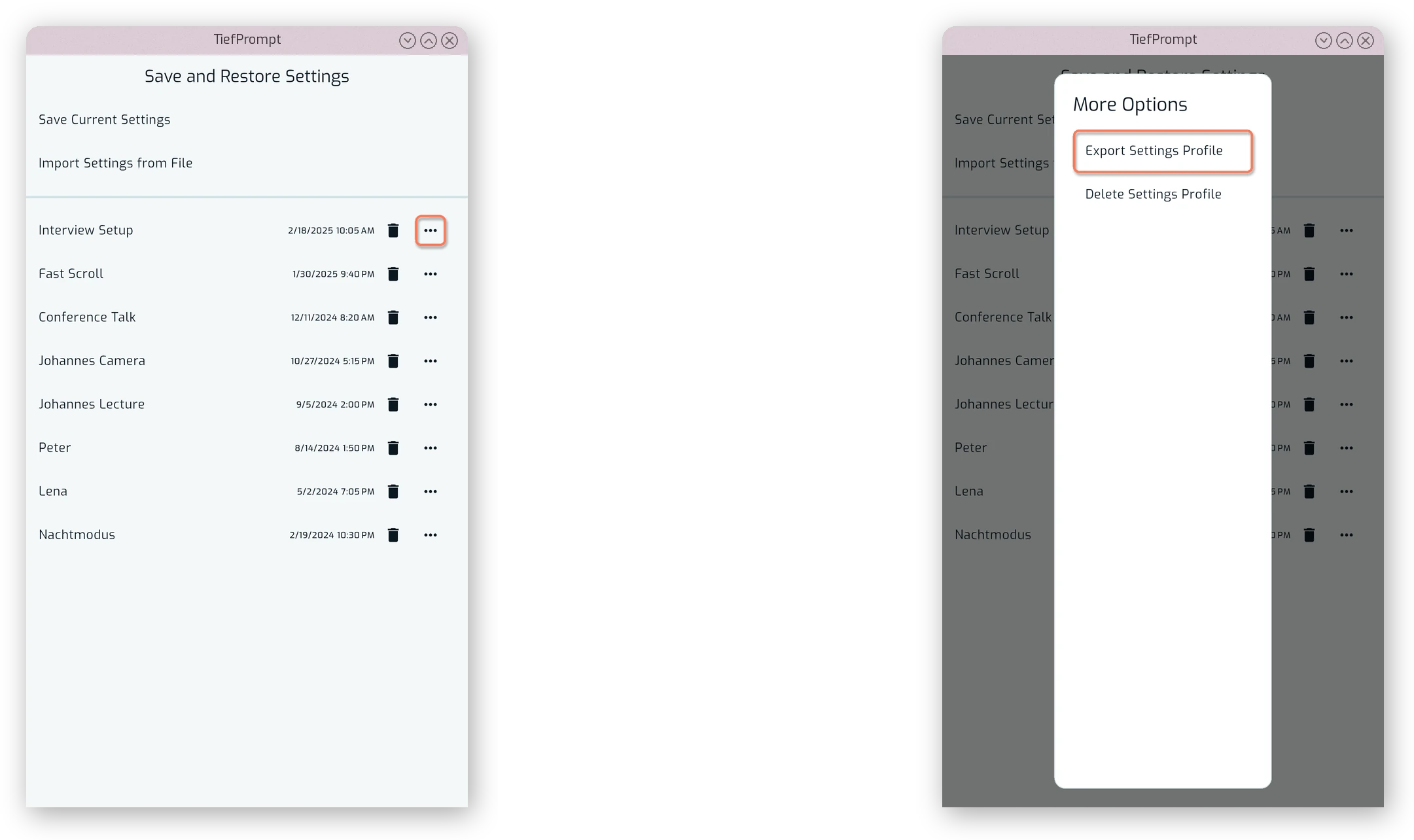
Once saved, you can also export or delete a settings profile by pressing the three buttons to the right of each profile:
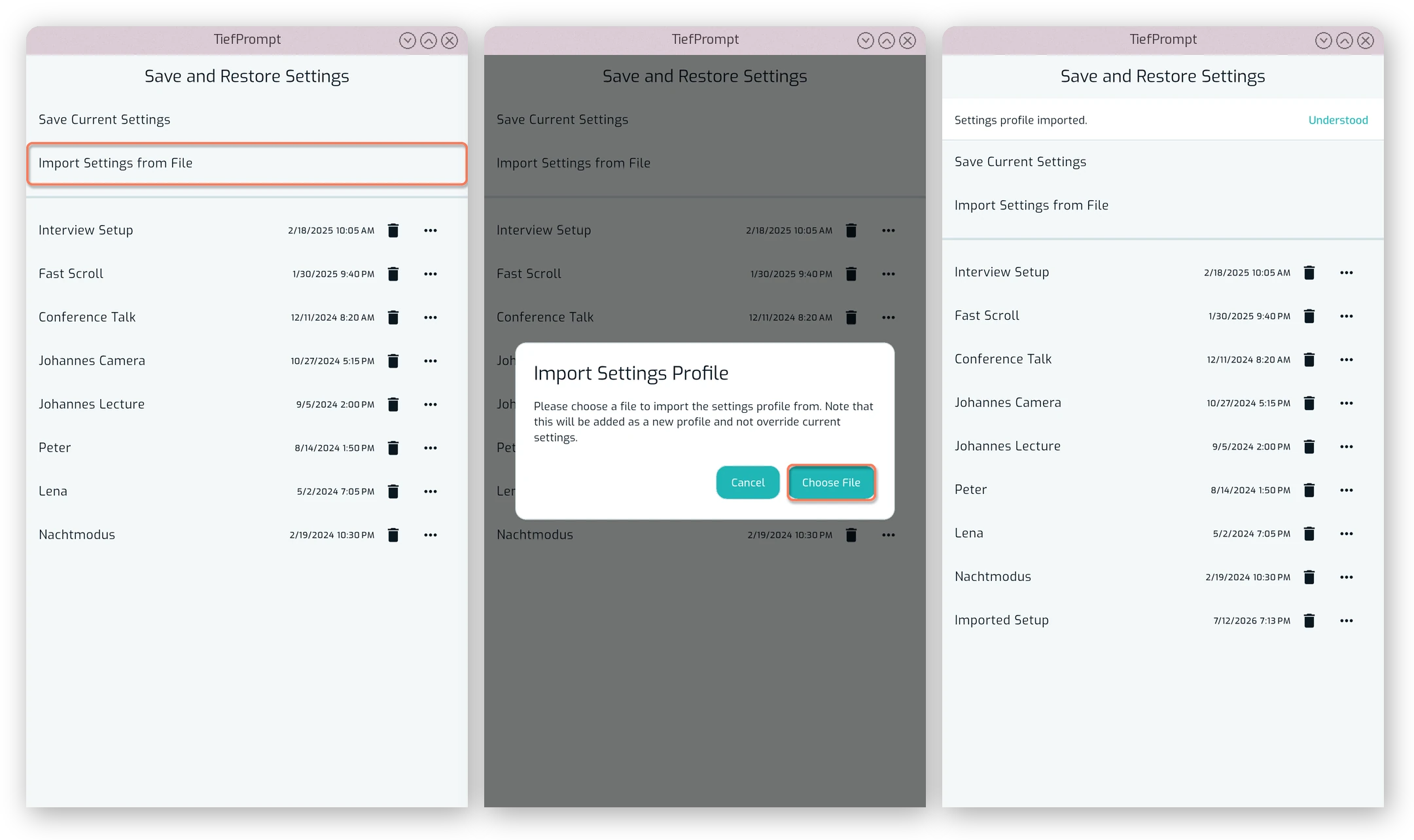
After entering the file name and location of your settings profile, you are able to copy it to a different device and import it from the same screen:
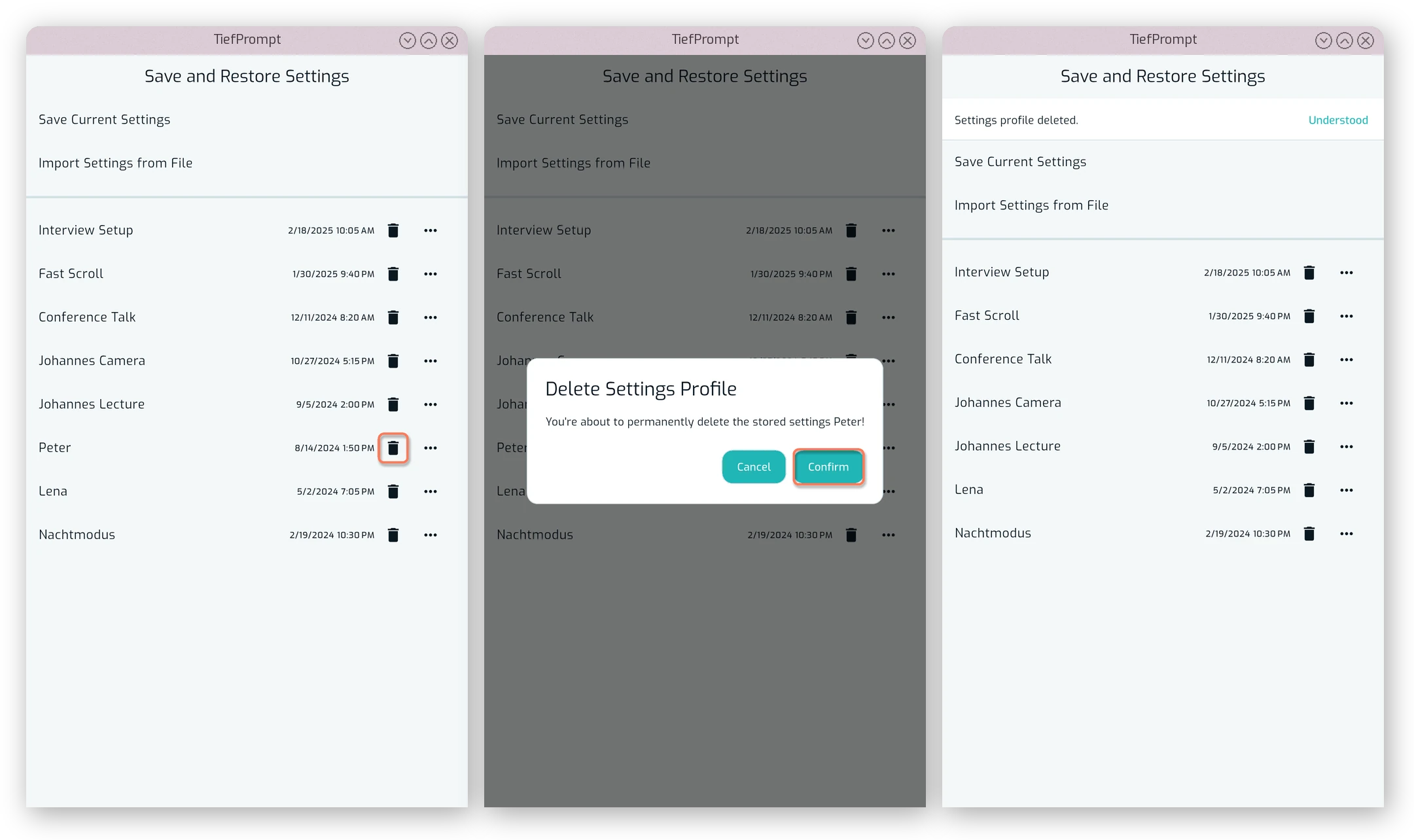
To delete a profile, press the trashcan icon next to it and confirm.